This application is client software for real-time voice conversion that supports various voice conversion models. This document provides a description for voice conversion limited to RVC(Retrieval-based-Voice-Conversion).
From the following, the original Retrieval-based-Voice-Conversion-WebUI is referred to as the original-RVC, RVC-WebUI created by ddPn08 is referred to as ddPn08-RVC.
- Model training must be done separately.
- If you want to learn by yourself, please go to original-RVC or ddPn08RVC.
- Recording app on Github Pages is convenient for preparing voice for learning on the browser.
- [Commentary video] (https://youtu.be/s_GirFEGvaA)
- TIPS for training has been published, so please refer to it.
HuBERT is required to run RVC.
Download hubert_base.pt from this repository and store it in the folder containing the batch file.
Unzip the downloaded zip file and run start_http.bat.
After extracting the download file, execute startHttp.command. If it shows that the developer cannot be verified, press the control key again and click to execute (or right-click to execute).
When connecting remotely, please use .bat file (win) and .command file (mac) where http is replaced with https.
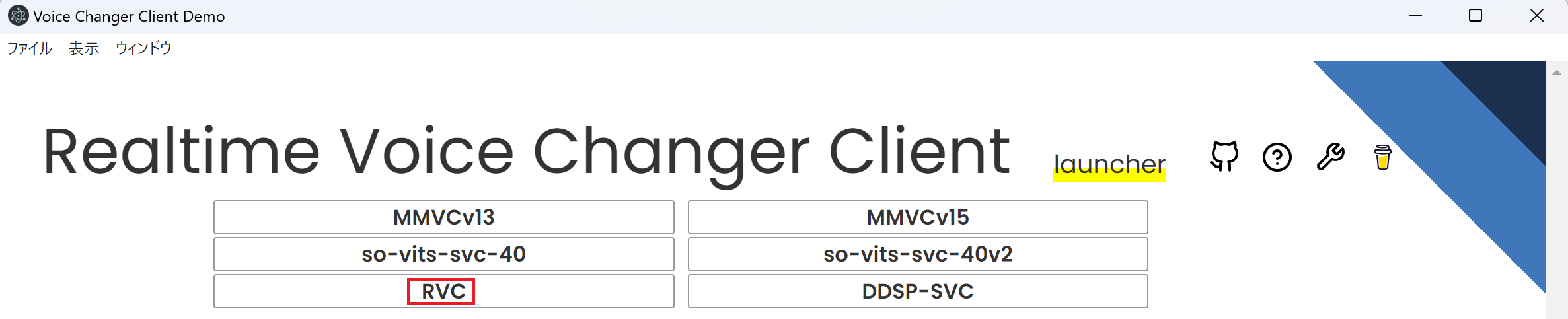
It is successful if the Launcher screen like the one below appears. Select RVC from this screen.
It is successful if the following screen appears.

start starts the server, stop stops the server
Indicates the status of real-time conversion.
The lag from voicing to conversion is buf + res seconds. Adjust so that the buf time is longer than res.
This is the volume after voice conversion.
It is the length (ms) of one section to cut the audio. Shortening the Input Chunk reduces this number.
This is the time it takes to convert data that is the sum of Input Chunk and Extra Data Length. Shortening both Input Chunk and Extra Data Length will reduce the number.
Get information held by the server. If information synchronization between server and client seems not to be successful, please press the Reload button.
You can switch between uploaded models. Information about the model is shown in [] under the name
- Is the model considering f0(=pitch)?
- f0: consider
- nof0: don't consider
- Sampling rate used to train the model
- Number of feature channels used by the model
- Clients used for learning
- org: This is the model trained in orginal-RVC.
- webui: The model trained on ddPn08-RVC.
You can choose either PyTorch or ONNX for each slot.
You can choose which frame to set the model in. The set model can be switched with Switch Model in Server Control.
Specify the trained model here. Required fields. You can choose either ONNX format (.onnx) or PyTorch format (.pth).
- If trained with orginal-RVC, it is in
/logs/weights. - If trained with ddPn08-RVC, it is in
/models/checkpoints.
This is an additional function that brings the features extracted by HuBERT closer to the training data. Used in pairs with index(.index).
- If trained with orginal-RVC, it is in
/logs/your-expetiment-name/total_fea.npy. - If trained with ddPn08-RVC, it is in
/models/checkpoints/your-model-name_index/your-model-name.0.big.npy.
This is an additional function that brings the features extracted by HuBERT closer to the training data. Used in pairs with feature(.npy).
- If trained with orginal-RVC, it is in
/logs/your-expetiment-name/total_fea.npy. - If trained with ddPn08-RVC, it is in
/models/checkpoints/your-model-name_index/your-model-name.0.big.npy.
You can choose to infer precision as float32 or float16. This selection can be speeded up at the expense of accuracy. Turn it off if it doesn't work.
Enter the default value for how much the pitch of the voice should be converted. You can also convert during inference. Below is a guideline for the settings.
- +12 for male voice to female voice conversion
- -12 for female voice to male voice conversion
After setting the above items, press to make the model ready for use.
Choose which of the uploaded model files to use (PyTorch or ONNX). It will be gone in the next version.
Choose an input device
Choose an output terminal
Audio is recorded from when you press start until you press stop. Pressing this button does not start real-time conversion. Press Server Control for real-time conversion
On/Off of the browser's built-in noise removal function.
- input: Increase or decrease the volume of the input audio to the model. 1 is the default value
- output: Increase or decrease the volume of the output audio from the model. 1 is the default value
Choose an algorithm for extracting the pitch. You can choose from the following two types.
- Lightweight
pm - Highly accurate
harvest
Record input and output on the server side. As for the input, the sound of the microphone is sent to the server and recorded as it is. It can be used to check the communication path from the microphone to the server. For output, the data output from the model is recorded in the server. You can see how the model behaves (once you've verified that your input is correct).
It seems to be a setting when supporting multiple speakers, but it is not used at present because the RVC head office does not support it (it is unlikely).
Adjust the pitch of your voice. Below is a guideline for the settings.
- +12 for male voice to female voice conversion
- -12 for female voice to male voice conversion
Specify the ratio to shift to the features used in training. Effective when both feature and index are set in Model Setting. 0 uses the output of HuBERT as it is, 1 brings it all back to the original features. If the index ratio is greater than 0, the search may take a long time.
The volume threshold for audio conversion. If the rms is smaller than this value, no voice conversion is performed and silence is returned. (In this case, the conversion process is skipped, so the load is less.)
Decide how much length to cut and convert in one conversion. The higher the value, the more efficient the conversion, but the larger the buf value, the longer the maximum time before the conversion starts. The approximate time is displayed in buff:.
Determines how much past audio to include in the input when converting audio. The longer the past voice is, the better the accuracy of the conversion, but the longer the res is, the longer the calculation takes. (Probably because Transformer is a bottleneck, the calculation time will increase by the square of this length)
If you have 2 or more GPUs, you can choose your GPU here.