Context7 MCP - どんなプロンプトにも最新のコードドキュメントで応える
LLM は使用しているライブラリに関する古い情報や一般的な情報に依存しています。その結果:
❌ コード例が古く、1 年前のトレーニングデータに基づいている
❌ 存在しない API をハルシネーションして生成する
❌ 古いパッケージバージョンに対する一般的な回答しか得られない
Context7 MCP は最新のバージョン固有のドキュメントとコード例をソースから直接取得し、プロンプトに直接配置します。
Cursor のプロンプトに use context7 を追加するだけ:
Create a basic Next.js project with app router. use context7 Create a script to delete the rows where the city is "" given PostgreSQL credentials. use context7 Context7 は最新のコード例とドキュメントを直接 LLM のコンテキストに取得します。
1️⃣ 普段通りにプロンプトを書く
2️⃣ LLM に use context7 と指示する
3️⃣ 動作するコードの回答を得る
タブの切り替えも、存在しない API のハルシネーションも、古いコード生成もありません。
プロジェクト追加ガイド をチェックして、お気に入りのライブラリを Context7 に追加(または更新)する方法を学びましょう。
Node.js >= v18.0.0
Cursor、Windsurf、Claude Desktop またはその他の MCP クライアント
Smithery 経由でのインストール https://smithery.ai/server/@upstash/context7-mcp ) 経由で任意のクライアントに Context7 MCP サーバーを自動的にインストールするには:
npx -y @smithery/cli@latest install @upstash/context7-mcp --client < CLIENT_NAME> --key < YOUR_SMITHERY_KEY> Smithery キーは Smithery.ai Web ページ で確認できます。
Cursor へのインストール https://docs.cursor.com/context/model-context-protocol ) を参照してください。
> Cursor 1.0 以降、下のインストールボタンをクリックすることで、ワンクリックで即座にインストールできます。
#### Cursor リモートサーバー接続
[](https://cursor.com/install-mcp?name=context7&config=eyJ1cmwiOiJodHRwczovL21jcC5jb250ZXh0Ny5jb20vbWNwIn0%3D )
```json
{
"mcpServers": {
"context7": {
"url": "https://mcp.context7.com/mcp "
}
}
}
```
#### Cursor ローカルサーバー接続
[](https://cursor.com/install-mcp?name=context7&config=eyJjb21tYW5kIjoibnB4IC15IEB1cHN0YXNoL2NvbnRleHQ3LW1jcCJ9 )
```json
{
"mcpServers": {
"context7": {
"command": "npx",
"args": ["-y", "@upstash/context7-mcp"]
}
}
}
```
代替方法:Bun を使用
[](https://cursor.com/install-mcp?name=context7&config=eyJjb21tYW5kIjoiYnVueCAteSBAdXBzdGFzaC9jb250ZXh0Ny1tY3AifQ%3D%3D )
```json
{
"mcpServers": {
"context7": {
"command": "bunx",
"args": ["-y", "@upstash/context7-mcp"]
}
}
}
```
代替方法:Deno を使用
[](https://cursor.com/install-mcp?name=context7&config=eyJjb21tYW5kIjoiZGVubyBydW4gLS1hbGxvdy1lbnYgLS1hbGxvdy1uZXQgbnBtOkB1cHN0YXNoL2NvbnRleHQ3LW1jcCJ9 )
```json
{
"mcpServers": {
"context7": {
"command": "deno",
"args": [
"run",
"--allow-env=NO_DEPRECATION,TRACE_DEPRECATION",
"--allow-net",
"npm:@upstash/context7-mcp"
]
}
}
}
```
Windsurf へのインストール https://docs.windsurf.com/windsurf/mcp ) を参照してください。
#### Windsurf リモートサーバー接続
```json
{
"mcpServers": {
"context7": {
"serverUrl": "https://mcp.context7.com/mcp "
}
}
}
```
#### Windsurf ローカルサーバー接続
```json
{
"mcpServers": {
"context7": {
"command": "npx",
"args": ["-y", "@upstash/context7-mcp"]
}
}
}
```
VS Code へのインストール https://insiders.vscode.dev/redirect?url=vscode%3Amcp%2Finstall%3F%7B%22name%22%3A%22context7%22%2C%22command%22%3A%22npx%22%2C%22args%22%3A%5B%22-y%22%2C%22%40upstash%2Fcontext7-mcp%40latest%22%5D%7D )
[https://insiders.vscode.dev/redirect?url=vscode-insiders%3Amcp%2Finstall%3F%7B%22name%22%3A%22context7%22%2C%22command%22%3A%22npx%22%2C%22args%22%3A%5B%22-y%22%2C%22%40upstash%2Fcontext7-mcp%40latest%22%5D%7D )
これを VS Code MCP 設定ファイルに追加します。詳細は [VS Code MCP ドキュメント](https://code.visualstudio.com/docs/copilot/chat/mcp-servers ) を参照してください。
#### VS Code リモートサーバー接続
```json
"mcp": {
"servers": {
"context7": {
"type": "http",
"url": "https://mcp.context7.com/mcp "
}
}
}
```
#### VS Code ローカルサーバー接続
```json
"mcp": {
"servers": {
"context7": {
"type": "stdio",
"command": "npx",
"args": ["-y", "@upstash/context7-mcp"]
}
}
}
```
Cline でのインストール
1. **Cline** を開きます。
2. メニューアイコン (☰) をクリックし、**MCP サーバー**セクションに移動します。
3. **リモートサーバー** タブを選択します。
4. **設定を編集** ボタンをクリックします。
5. context7 に関連する設定を `mcpServers` に追加します:
```json
{
"mcpServers": {
"context7": {
"url": "https://mcp.context7.com/mcp ",
"type": "streamableHttp",
"headers": {
"Authorization": "Bearer YOUR_API_KEY"
}
}
}
}
```
Visual Studio 2022 へのインストール https://learn.microsoft.com/visualstudio/ide/mcp-servers?view=vs-2022 ) に従って、Visual Studio 2022 で Context7 MCP を設定できます。
これを Visual Studio MCP 設定ファイルに追加します(詳細は [Visual Studio ドキュメント](https://learn.microsoft.com/visualstudio/ide/mcp-servers?view=vs-2022 ) を参照):
```json
{
"mcp": {
"servers": {
"context7": {
"type": "http",
"url": "https://mcp.context7.com/mcp "
}
}
}
}
```
または、ローカルサーバーの場合:
```json
{
"mcp": {
"servers": {
"context7": {
"type": "stdio",
"command": "npx",
"args": ["-y", "@upstash/context7-mcp"]
}
}
}
}
```
詳細情報とトラブルシューティングについては、[Visual Studio MCP サーバードキュメント](https://learn.microsoft.com/visualstudio/ide/mcp-servers?view=vs-2022 ) を参照してください。
Zed へのインストール https://zed.dev/extensions?query=Context7 ) 経由でインストールできるか、Zed の `settings.json` にこれを追加できます。詳細は [Zed Context Server ドキュメント](https://zed.dev/docs/assistant/context-servers ) を参照してください。
```json
{
"context_servers": {
"Context7": {
"source": "custom",
"command": "npx",
"args": ["-y", "@upstash/context7-mcp", "--api-key", "YOUR_API_KEY"]
}
}
}
```
Claude Code へのインストール https://docs.anthropic.com/ja/docs/claude-code/mcp ) を参照してください。
#### Claude Code ローカルサーバー接続
```sh
claude mcp add context7 -- npx -y @upstash/context7-mcp
```
#### Claude Code リモートサーバー接続
```sh
claude mcp add --transport http context7 https://mcp.context7.com/mcp
```
Claude Desktop へのインストール https://modelcontextprotocol.io/quickstart/user ) を参照してください。
```json
{
"mcpServers": {
"Context7": {
"command": "npx",
"args": ["-y", "@upstash/context7-mcp"]
}
}
}
```
BoltAI へのインストール https://docs.boltai.com/docs/plugins/mcp-servers ) で利用可能です。iOS 版 BoltAI については、[このガイドを参照してください](https://docs.boltai.com/docs/boltai-mobile/mcp-servers)。
Copilot Coding Agent へのインストール https://mcp.context7.com/mcp ",
"tools": ["query-docs", "resolve-library-id"]
}
}
}
```
詳細は [公式 GitHub ドキュメント](https://docs.github.com/en/enterprise-cloud@latest/copilot/how-tos/agents/copilot-coding-agent/extending-copilot-coding-agent-with-mcp ) をご覧ください。
Copilot CLI へのインストール https://mcp.context7.com/mcp ",
"headers": {
"CONTEXT7_API_KEY": "YOUR_API_KEY"
},
"tools": ["query-docs", "resolve-library-id"]
}
}
}
```
または、ローカルサーバーの場合:
```json
{
"mcpServers": {
"context7": {
"type": "local",
"command": "npx",
"tools": ["query-docs", "resolve-library-id"],
"args": ["-y", "@upstash/context7-mcp", "--api-key", "YOUR_API_KEY"]
}
}
}
```
`mcp-config.json` ファイルが存在しない場合は、作成してください。
Docker を使用
Dockerfile の内容を表示
```Dockerfile
FROM node:18-alpine
WORKDIR /app
# 最新バージョンをグローバルにインストール
RUN npm install -g @upstash/context7-mcp
# 必要に応じてデフォルトポートを公開(任意、MCP クライアントの相互作用に依存)
# EXPOSE 3000
# サーバーを実行するデフォルトコマンド
CMD ["context7-mcp"]
```
次に、タグ(例:`context7-mcp`)を使用してイメージをビルドします。**Docker Desktop(または Docker デーモン)が実行中であることを確認してください。** `Dockerfile` を保存した同じディレクトリで次のコマンドを実行します:
```bash
docker build -t context7-mcp .
```
2. **MCP クライアントの設定:**
MCP クライアントの設定を更新して Docker コマンドを使用するようにします。
_cline_mcp_settings.json の例:_
```json
{
"mcpServers": {
"Сontext7": {
"autoApprove": [],
"disabled": false,
"timeout": 60,
"command": "docker",
"args": ["run", "-i", "--rm", "context7-mcp"],
"transportType": "stdio"
}
}
}
```
_注:これは設定例です。この README の前半で MCP クライアント(Cursor、VS Code など)の具体的な例を参照して、構造(例:`mcpServers` 対 `servers`)を適応させてください。また、`args` 内のイメージ名が `docker build` コマンドで使用したタグと一致していることを確認してください。_
Windows へのインストール
Augment Code へのインストール
Roo Code へのインストール https://docs.roocode.com/features/mcp/using-mcp-in-roo ) を参照してください。
#### Roo Code リモートサーバー接続
```json
{
"mcpServers": {
"context7": {
"type": "streamable-http",
"url": "https://mcp.context7.com/mcp "
}
}
}
```
#### Roo Code ローカルサーバー接続
```json
{
"mcpServers": {
"context7": {
"command": "npx",
"args": ["-y", "@upstash/context7-mcp"]
}
}
}
```
Zencoder へのインストール
Amazon Q Developer CLI へのインストール https://docs.aws.amazon.com/amazonq/latest/qdeveloper-ug/command-line-mcp-configuration.html ) を参照してください。
```json
{
"mcpServers": {
"context7": {
"command": "npx",
"args": ["-y", "@upstash/context7-mcp@latest"]
}
}
}
```
## 🔨 利用可能なツール
Context7 MCP は LLM が使用できる以下のツールを提供します:
- `resolve-library-id`:一般的なライブラリ名を Context7 互換のライブラリ ID に変換します。
- `query`(必須):ユーザーの質問またはタスク(関連性によるランキングに使用)
- `libraryName`(必須):検索するライブラリの名前
- `query-docs`:Context7 互換のライブラリ ID を使用してライブラリのドキュメントを取得します。
- `libraryId`(必須):正確な Context7 互換のライブラリ ID(例:`/mongodb/docs`、`/vercel/next.js`)
- `query`(必須):関連するドキュメントを取得するための質問またはタスク
## 💻 開発
プロジェクトをクローンして依存関係をインストールします:
```bash
pnpm i
```
ビルド:
```bash
pnpm run build
```
サーバーを実行:
```bash
node packages/mcp/dist/index.js
```
### CLI 引数
`context7-mcp` は以下の CLI フラグを受け付けます:
- `--transport ` – 使用するトランスポート(デフォルトは `stdio`)。
- `--port ` – `http` トランスポート使用時にリッスンするポート(デフォルト `3000`)。
http トランスポートとポート 8080 の例:
```bash
node packages/mcp/dist/index.js --transport http --port 8080
```
ローカル設定例
MCP Inspector でのテスト
## 🚨 トラブルシューティング
モジュールが見つからないエラー
ESM 解決の問題
TLS/証明書の問題
一般的な MCP クライアントエラー
## ⚠️ 免責事項
Context7 プロジェクトはコミュニティが貢献しているもので、高品質を維持するよう努めていますが、すべてのライブラリドキュメントの正確性、完全性、セキュリティを保証することはできません。Context7 にリストされているプロジェクトは、Context7 ではなく、それぞれの所有者によって開発および保守されています。疑わしい、不適切な、または潜在的に有害なコンテンツを発見した場合は、プロジェクトページの「報告」ボタンを使用して、すぐにお知らせください。私たちはすべての報告を真剣に受け止め、プラットフォームの整合性と安全性を維持するために、フラグが付けられたコンテンツを迅速にレビューします。Context7 を使用することにより、あなたは自己の裁量とリスクで使用することを認めます。
## 🤝 私たちとつながる
最新情報を入手し、コミュニティに参加しましょう:
- 📢 最新ニュースとアップデートのために [X](https://x.com/contextai ) でフォローしてください
- 🌐 [Web サイト](https://context7.com ) を訪問してください
- 💬 [Discord コミュニティ](https://upstash.com/discord ) に参加してください
## 📺 メディアでの Context7
- [Better Stack: "Free Tool Makes Cursor 10x Smarter"](https://youtu.be/52FC3qObp9E )
- [Cole Medin: "This is Hands Down the BEST MCP Server for AI Coding Assistants"](https://www.youtube.com/watch?v=G7gK8H6u7Rs )
- [Income Stream Surfers: "Context7 + SequentialThinking MCPs: Is This AGI?"](https://www.youtube.com/watch?v=-ggvzyLpK6o )
- [Julian Goldie SEO: "Context7: New MCP AI Agent Update"](https://www.youtube.com/watch?v=CTZm6fBYisc )
- [JeredBlu: "Context 7 MCP: Get Documentation Instantly + VS Code Setup"](https://www.youtube.com/watch?v=-ls0D-rtET4 )
- [Income Stream Surfers: "Context7: The New MCP Server That Will CHANGE AI Coding"](https://www.youtube.com/watch?v=PS-2Azb-C3M )
- [AICodeKing: "Context7 + Cline & RooCode: This MCP Server Makes CLINE 100X MORE EFFECTIVE!"](https://www.youtube.com/watch?v=qZfENAPMnyo )
- [Sean Kochel: "5 MCP Servers For Vibe Coding Glory (Just Plug-In & Go)"](https://www.youtube.com/watch?v=LqTQi8qexJM )
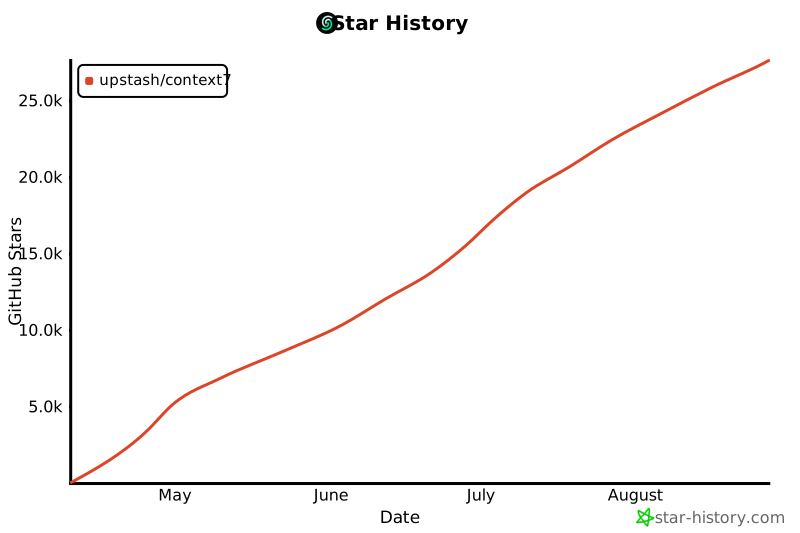
## ⭐ スター履歴
[](https://www.star-history.com/#upstash/context7&Date )
## 📄 ライセンス
MIT




-purple)




](https://cursor.com/install-mcp?name=context7&config=eyJ1cmwiOiJodHRwczovL21jcC5jb250ZXh0Ny5jb20vbWNwIn0%3D)
](https://cursor.com/install-mcp?name=context7&config=eyJjb21tYW5kIjoibnB4IC15IEB1cHN0YXNoL2NvbnRleHQ3LW1jcCJ9)
](https://cursor.com/install-mcp?name=context7&config=eyJjb21tYW5kIjoiYnVueCAteSBAdXBzdGFzaC9jb250ZXh0Ny1tY3AifQ%3D%3D)
](https://cursor.com/install-mcp?name=context7&config=eyJjb21tYW5kIjoiZGVubyBydW4gLS1hbGxvdy1lbnYgLS1hbGxvdy1uZXQgbnBtOkB1cHN0YXNoL2NvbnRleHQ3LW1jcCJ9)
 ](https://insiders.vscode.dev/redirect?url=vscode-insiders%3Amcp%2Finstall%3F%7B%22name%22%3A%22context7%22%2C%22command%22%3A%22npx%22%2C%22args%22%3A%5B%22-y%22%2C%22%40upstash%2Fcontext7-mcp%40latest%22%5D%7D)
これを VS Code MCP 設定ファイルに追加します。詳細は [VS Code MCP ドキュメント](https://code.visualstudio.com/docs/copilot/chat/mcp-servers) を参照してください。
#### VS Code リモートサーバー接続
```json
"mcp": {
"servers": {
"context7": {
"type": "http",
"url": "https://mcp.context7.com/mcp"
}
}
}
```
#### VS Code ローカルサーバー接続
```json
"mcp": {
"servers": {
"context7": {
"type": "stdio",
"command": "npx",
"args": ["-y", "@upstash/context7-mcp"]
}
}
}
```
](https://insiders.vscode.dev/redirect?url=vscode-insiders%3Amcp%2Finstall%3F%7B%22name%22%3A%22context7%22%2C%22command%22%3A%22npx%22%2C%22args%22%3A%5B%22-y%22%2C%22%40upstash%2Fcontext7-mcp%40latest%22%5D%7D)
これを VS Code MCP 設定ファイルに追加します。詳細は [VS Code MCP ドキュメント](https://code.visualstudio.com/docs/copilot/chat/mcp-servers) を参照してください。
#### VS Code リモートサーバー接続
```json
"mcp": {
"servers": {
"context7": {
"type": "http",
"url": "https://mcp.context7.com/mcp"
}
}
}
```
#### VS Code ローカルサーバー接続
```json
"mcp": {
"servers": {
"context7": {
"type": "stdio",
"command": "npx",
"args": ["-y", "@upstash/context7-mcp"]
}
}
}
```