



Annotate, segment, and track multiple animals (or any research target) in video with a single toolchain.
- Overview
- Key Features
- Documentation & Support
- Quick Start
- Installation Options
- Using Annolid
- Annotation Guide
- Labeling Best Practices
- Tutorials & Examples
- Troubleshooting
- Docker
- Citing Annolid
- Publications
- Additional Resources
- Acknowledgements
- Contributing
- License
Annolid is a deep learning toolkit for animal behavior analysis that brings annotation, instance segmentation, tracking, and behavior classification into a single workflow. It combines state-of-the-art models—including Cutie for video object segmentation, Segment Anything, and Grounding DINO—to deliver resilient, markerless tracking even when animals overlap, occlude each other, or are partially hidden by the environment.
Use Annolid to classify behavioral states such as freezing, digging, pup huddling, or social interaction while maintaining fine-grained tracking of individuals and body parts across long video sessions.
Python support: Annolid runs on Python 3.10–3.13. The toolkit is not yet validated on Python 3.14, where several binary wheels (PyQt, Pillow) are still pending upstream releases.
- Markerless multiple-animal tracking from a single annotated frame.
- Instance segmentation powered by modern foundation models and transfer learning.
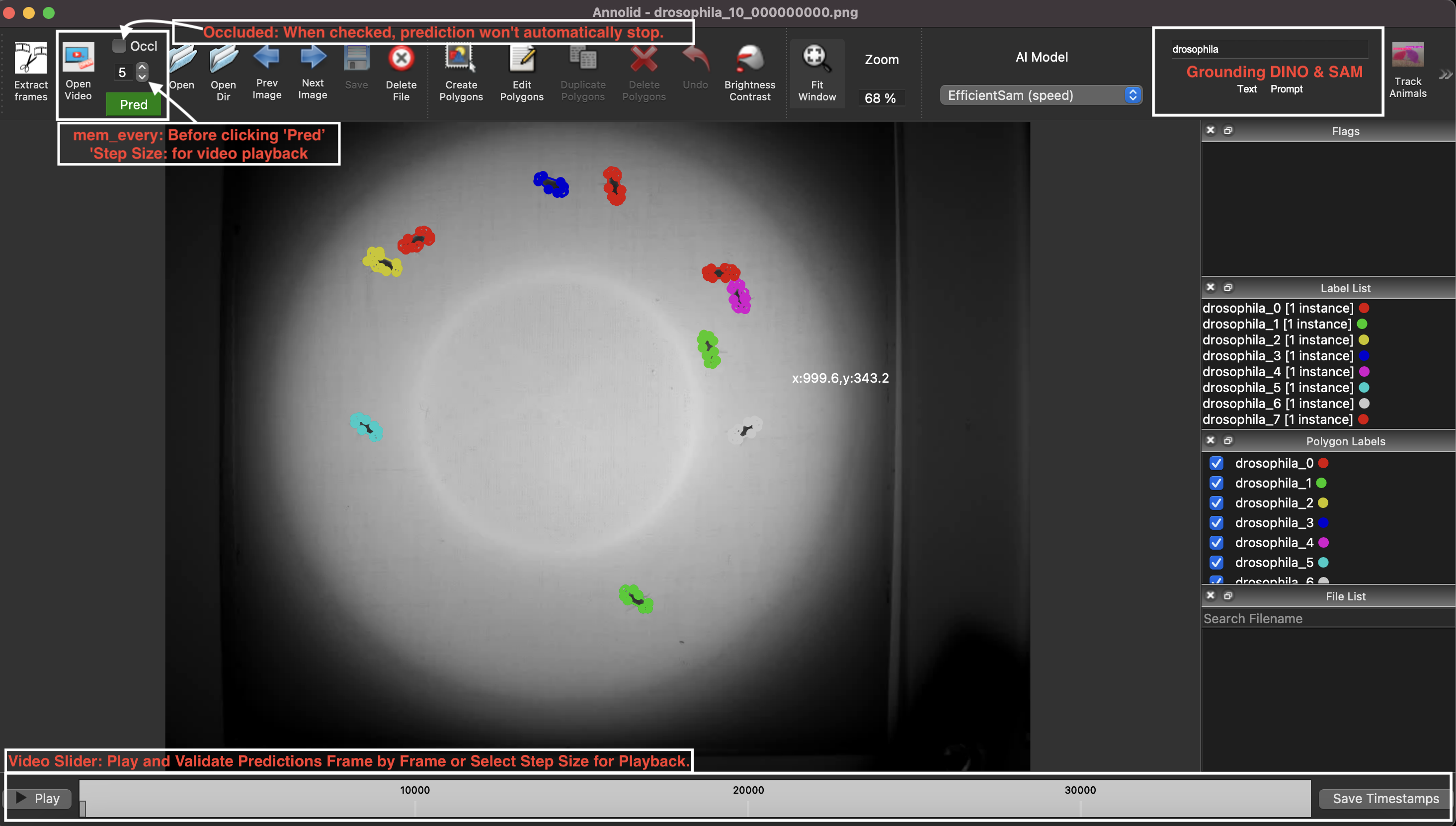
- Interactive GUI for rapid annotation (LabelMe-based) plus automation with text prompts.
- Behavioral state classification, keypoint tracking, and downstream analytics.
- Works with pre-recorded video or real-time streams; supports GPU acceleration.
- Optional EfficientTAM video tracking backend, fully integrated and auto-downloaded (no separate installation needed).
- Latest documentation and user guide: https://annolid.com (mirror: https://cplab.science/annolid)
- Community updates and tutorials are shared on the Annolid YouTube channel.
- Sample datasets, posters, and publications are available in the
docs/folder of this repository. - Join the discussion on the Annolid Google Group.
- Tracking Four Interacting Mice with One Labeled Frame | 10-Minute Experiment See how Annolid bootstraps multi-animal tracking from a single labeled frame in a fast end-to-end workflow: https://youtu.be/PNbPA649r78
- For more practical examples and walkthroughs, visit the Annolid YouTube channel.
If you prefer using Anaconda to manage environments:
conda create -n annolid-env python=3.11
conda activate annolid-env
conda install git ffmpeg
git clone --recurse-submodules https://github.com/healthonrails/annolid.git
cd annolid
pip install -e .
annolid # launches the GUIGet Annolid running in minutes with our automated script. It handles downloading, environment setup, and dependency installation (including uv acceleration if available).
macOS / Linux:
curl -sSL https://raw.githubusercontent.com/healthonrails/annolid/main/install.sh | bashWindows (PowerShell):
irm https://raw.githubusercontent.com/healthonrails/annolid/main/install.ps1 | iexThe script will:
- Clone the repository.
- Detect your OS and Hardware (Intel/Apple Silicon).
- Create an isolated virtual environment.
- Prompt for optional features (SAM3, Text-to-Speech, etc.).
- Offer to launch Annolid immediately.
For a full breakdown of one-line installer choices (GPU vs CPU, interactive vs non-interactive, custom paths, Conda, and extras), see:
For advanced users, Docker, Conda, or manual Pip installation, please see the Detailed Installation Guide.
- Launch the GUI:
conda activate annolid-env
annolid
- Provide custom labels:
annolid --labels=/path/to/labels_custom.txt
- Pick between Ollama, OpenAI GPT, or Google Gemini for caption chat features by opening the caption panel and clicking
Configure…next to the model selector. API keys are stored in~/.annolid/llm_settings.json. - Open AI & Models → AI Chat Studio… to launch a dedicated right-side WhatsApp-style multimodal chat dock (streaming chat, local
openai/whisper-tinyspeech-to-text for Talk/Record, voice talk/read controls, and one-click canvas/window sharing). - Summarise annotated behavior events into a time-budget report (GUI: File → Behavior Time Budget; CLI example with 60 s bins and a project schema):
python -m annolid.behavior.time_budget exported_events.csv \ --schema project.annolid.json \ --bin-size 60 \ -o time_budget.csv - Compress videos when storage is limited:
ffmpeg -i input.mp4 -vcodec libx264 output_compressed.mp4
- Run depth estimation on the currently loaded video via View → Video Depth Anything…. Use View → Depth Settings… to pick the encoder, resolution, FPS downsampling, and which outputs to save.
- Pretrained weights belong under
annolid/depth/checkpoints. Download just what you need via the bundled Python helper (useshuggingface-hub, already listed in dependencies):Passcd annolid python -m annolid.depth.download_weights --model video_depth_anything_vitl--allto fetch every checkpoint, or runpython -m annolid.depth.download_weights --listfor the full menu. Existing files are never re-downloaded. - The GUI runner now auto-downloads whichever checkpoint you select in the dialog, so you only need to invoke the helper when you want to prefetch models ahead of time.
- Depth run now streams inference frame-by-frame, emits a single
depth.ndjsonrecord alongside the video (with per-frame base64 depth PNGs plus scale metadata) instead of writing separate JSON files per frame, and still shows a live blended overlay while processing. Enablesave_depth_videoorsave_depth_framesonly if you also need rendered outputs. - Optional exports include
depth_frames/,<video_stem>_vis.mp4, point cloud CSVs,*.npz, and*_depths_exr/(EXR requiresOpenEXR/Imath). - Full walkthrough:
docs/source/video_depth_anything.md.
If you want to run the CoWTracker backend, install Annolid with the CowTracker extra:
pip install "annolid[cowtracker]"
# or from source
pip install -e ".[cowtracker]"
If Annolid is already installed, add only the CowTracker dependency:
pip install "safetensors>=0.4.0"Then select CoWTracker in the model dropdown. The model checkpoint is fetched from Hugging Face on first use.
CowTracker uses a minimal vendored VGGT runtime subset under:
annolid/tracker/cowtracker/cowtracker/thirdparty/vggt
If that vendored subset is not present, CowTracker can also use an externally
installed vggt package. See annolid/tracker/cowtracker/README.md for the
required vendored file list and packaging notes.

- Label polygons and keypoints clearly. Give each animal a unique instance name when tracking across frames (for example,
vole_1,mouse_2). Use descriptive behavior names (rearing,grooming) for polygons dedicated to behavioral events, and name body-part keypoints (nose,tail_base) consistently. - Accelerate timestamp annotation. While scoring behaviors, press
sto mark the start,eto mark the end,f/bto step ±10 frames, andrto remove events directly from the video slider. - Enable frame-level flags. Launch Annolid with
--flags "digging,rearing,grooming"to open a multi-select list of behaviors. Save selections withCtrl+Sor the Save button; remove events by pressingR. - Customize configuration. The first run creates
~/.labelmerc(orC:\Users\<username>\.labelmercon Windows). Edit this file to change defaults such asauto_save: true, or supply an alternative path viaannolid --config /path/to/file. - Learn more. Additional annotation tips live in
annolid/annotation/labelme.md.
- Label 20–100 frames per video to reach strong performance; the curve in
docs/imgs/AP_across_labeled_frames.pngshows how accuracy scales with annotation volume. - Close the loop with human-in-the-loop training (see
docs/imgs/human_in_the_loop.png): train on initial annotations, auto-label, correct, and retrain until predictions align with human expectations. - Draft labeling guidelines up front—start with this template and adapt it to your species and behaviors.
- Treat each animal instance as its own class when you need cross-frame identity. Use generic class names only when identity consistency is unnecessary, or when you are aggregating across many individuals.
- To generalize to new animals or videos, include diverse examples of each behavior and adjust the training set iteratively.
- Featured demo: Tracking Four Interacting Mice with One Labeled Frame | 10-Minute Experiment
- DINOv3 Keypoint Tracking tutorial: book/tutorials/DINOv3_keypoint_tracking.md


| YouTube Channel | Annolid documentations |
|---|---|
 |
 |

| Instance segmentations | Behavior prediction |
|---|---|
 |
 |

- Video playback errors (
OpenCV: FFMPEG: tag ...or missing codecs): Install FFmpeg via your package manager orconda install -c conda-forge ffmpegto extend codec support. - macOS Qt warning (
Class QCocoaPageLayoutDelegate is implemented in both ...):conda install qtpyresolves the conflict between OpenCV and PyQt. - If the GUI does not launch, confirm the correct environment is active and run
annolid --helpfor CLI usage. - For model training/inference from the terminal, use
annolid-run list-models,annolid-run train <model> --help-model, andannolid-run predict <model> --help-model. - YOLOE-26 prompting (text, visual, prompt-free) is available via
annolid-run predict yolo_labelmeand in the GUI video inference workflow (seedocs/source/yoloe_prompting.md). - For an interactive TensorBoard embedding projector view of DinoKPSEG DINOv3 patch features, run
annolid-run dino-kpseg-embeddings --data /path/to/data.yaml [--weights /path/to/best.pt]and thentensorboard --logdir <run_dir>/tensorboard(some DINOv3 checkpoints require a Hugging Face token).
Ensure Docker is installed, then run:
cd annolid/docker
docker build .
xhost +local:docker  # Linux only; allows GUI forwarding
docker run -it -v /tmp/.X11-unix:/tmp/.X11-unix/ -e DISPLAY=$DISPLAY <IMAGE_ID>
Replace <IMAGE_ID> with the identifier printed by docker build.
If you use Annolid in your research, please cite:
- Preprint: Annolid: Annotation, Instance Segmentation, and Tracking Toolkit
- Zenodo: Find the latest release DOI via the badge at the top of this README.
@misc{yang2024annolid,
      title={Annolid: Annotate, Segment, and Track Anything You Need},
      author={Chen Yang and Thomas A. Cleland},
      year={2024},
      eprint={2403.18690},
      archivePrefix={arXiv},
      primaryClass={cs.CV}
}

@article{yang2023automated,
  title={Automated Behavioral Analysis Using Instance Segmentation},
  author={Yang, Chen and Forest, Jeremy and Einhorn, Matthew and Cleland, Thomas A},
  journal={arXiv preprint arXiv:2312.07723},
  year={2023}
}

@misc{yang2020annolid,
  author = {Chen Yang and Jeremy Forest and Matthew Einhorn and Thomas Cleland},
  title = {Annolid: an instance segmentation-based multiple animal tracking and behavior analysis package},
  howpublished = {\url{https://github.com/healthonrails/annolid}},
  year = {2020}
}- 2022 – Ultrasonic vocalization study. Pranic et al. relate mouse pup vocalizations to non-vocal behaviors (bioRxiv).
- 2022 – Digging and pain behavior. Pattison et al. link digging behaviors to wellbeing in mice (Pain, 2022).
- SfN Posters:
- 2021: Annolid — instance segmentation-based multiple-animal tracking
- 2023: PSTR512.01 Scoring rodent digging behavior with Annolid
- 2023: PSTR512.02 Annolid: Annotate, Segment, and Track Anything You Need
- For more applications and datasets, visit https://cplab.science/annolid.
- Example dataset (COCO format): Download from Google Drive.
- Pretrained models: Available in the shared Google Drive folder.
- Feature requests & bug reports: Open an issue at github.com/healthonrails/annolid/issues.
- Additional videos: Visit the Annolid YouTube channel for demonstrations and talks.
Annolid's tracking module integrates Cutie for enhanced video object segmentation. If you use this feature, please cite Putting the Object Back into Video Object Segmentation (Cheng et al., 2023) and the Cutie repository.
The counting tool integrates CountGD; cite the original CountGD publication and repository when you rely on this module in your research.
Contributions are welcome! Review the guidelines in CONTRIBUTING.md, open an issue to discuss major changes, and run relevant tests before submitting a pull request.
Annolid is distributed under the Creative Commons Attribution-NonCommercial 4.0 International License.


