A powerful tiling window manager for macOS.




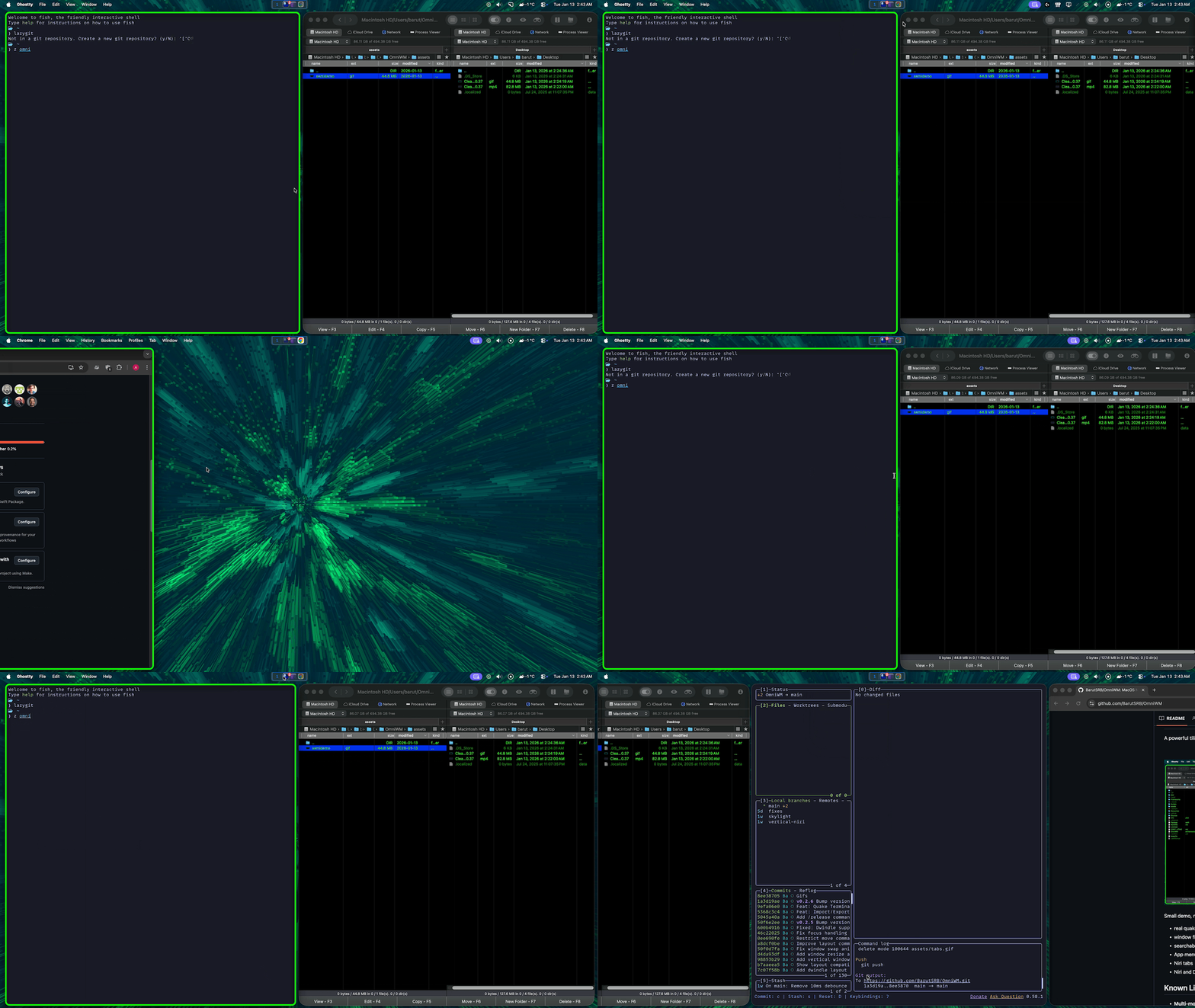
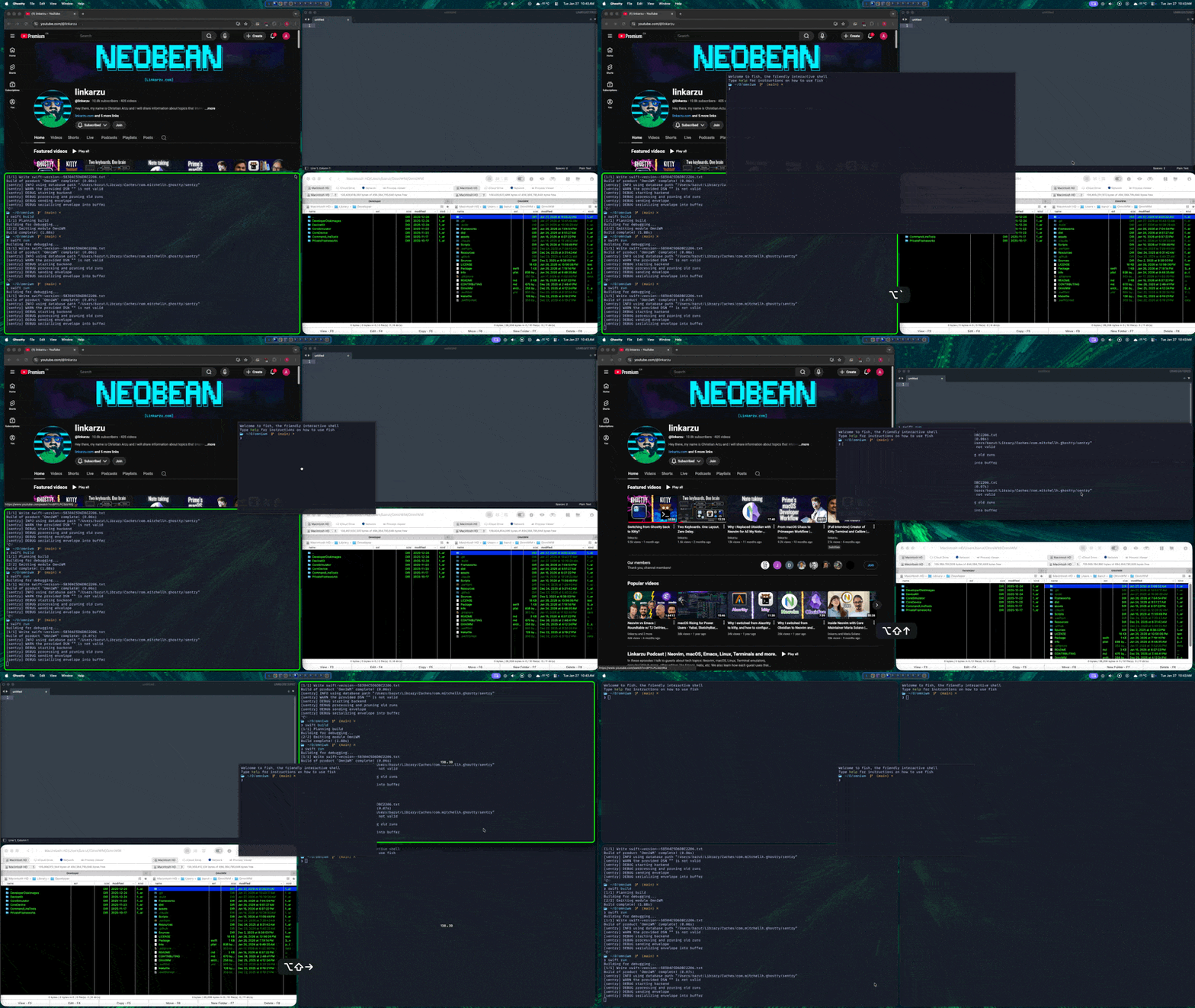
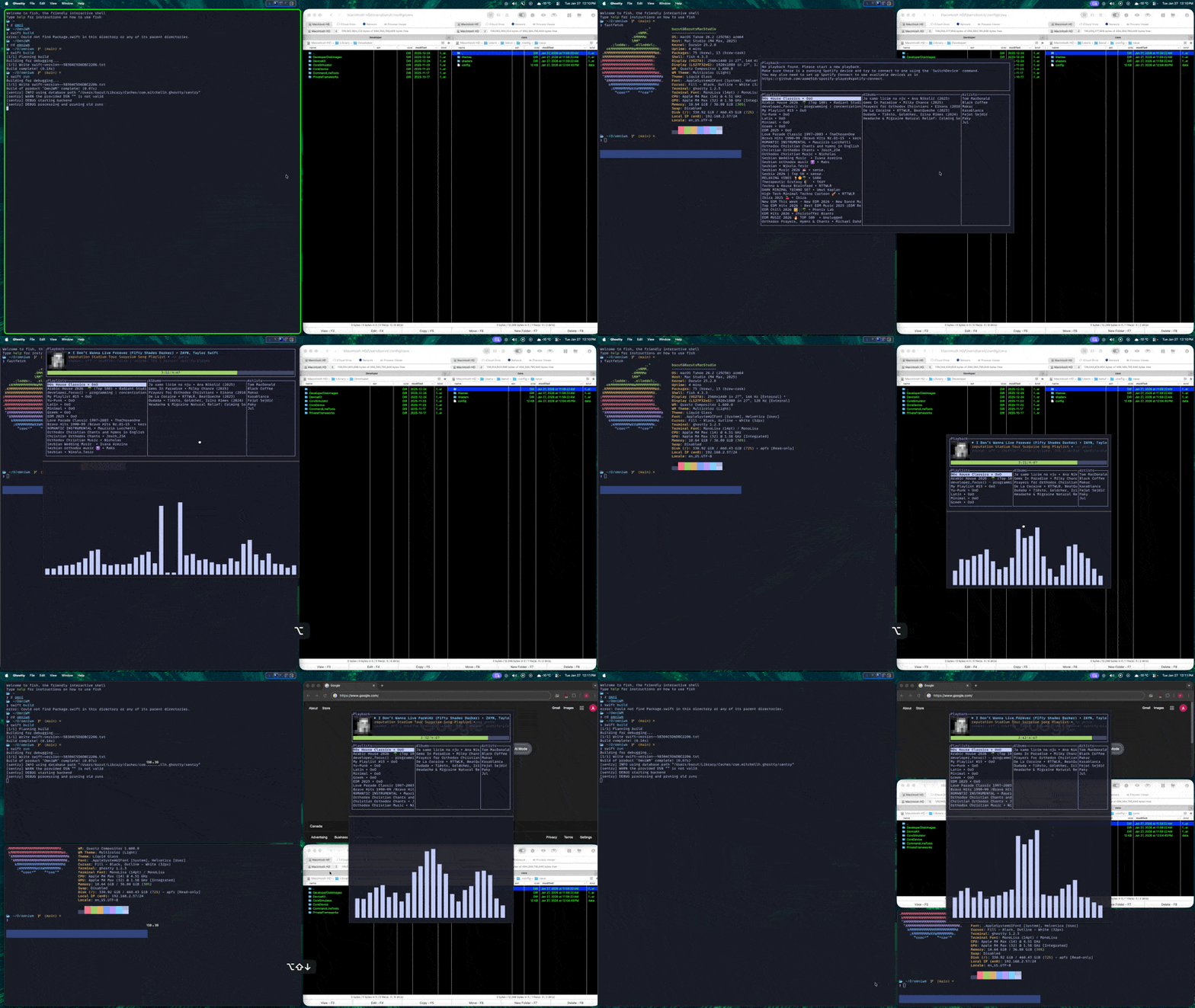
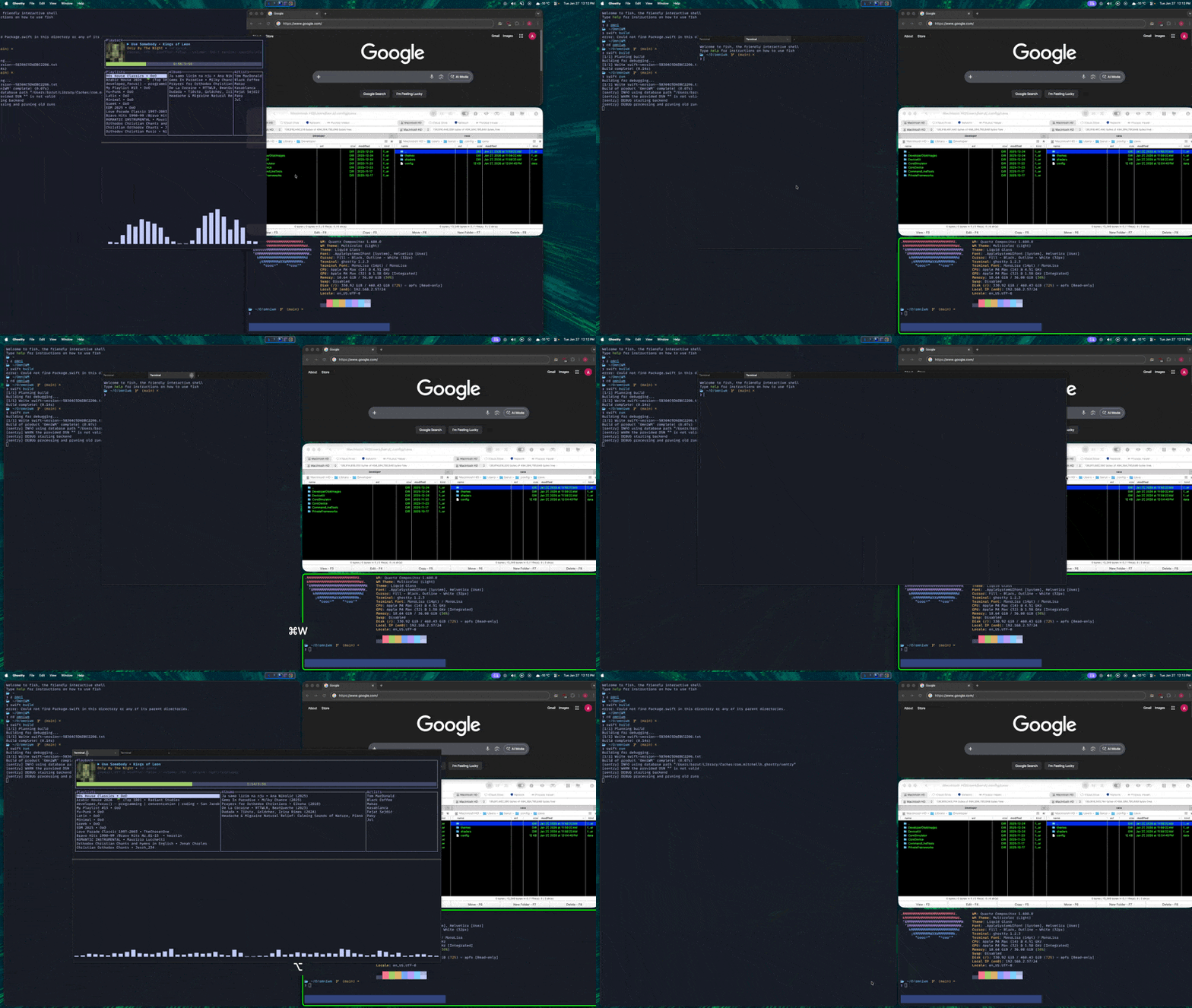
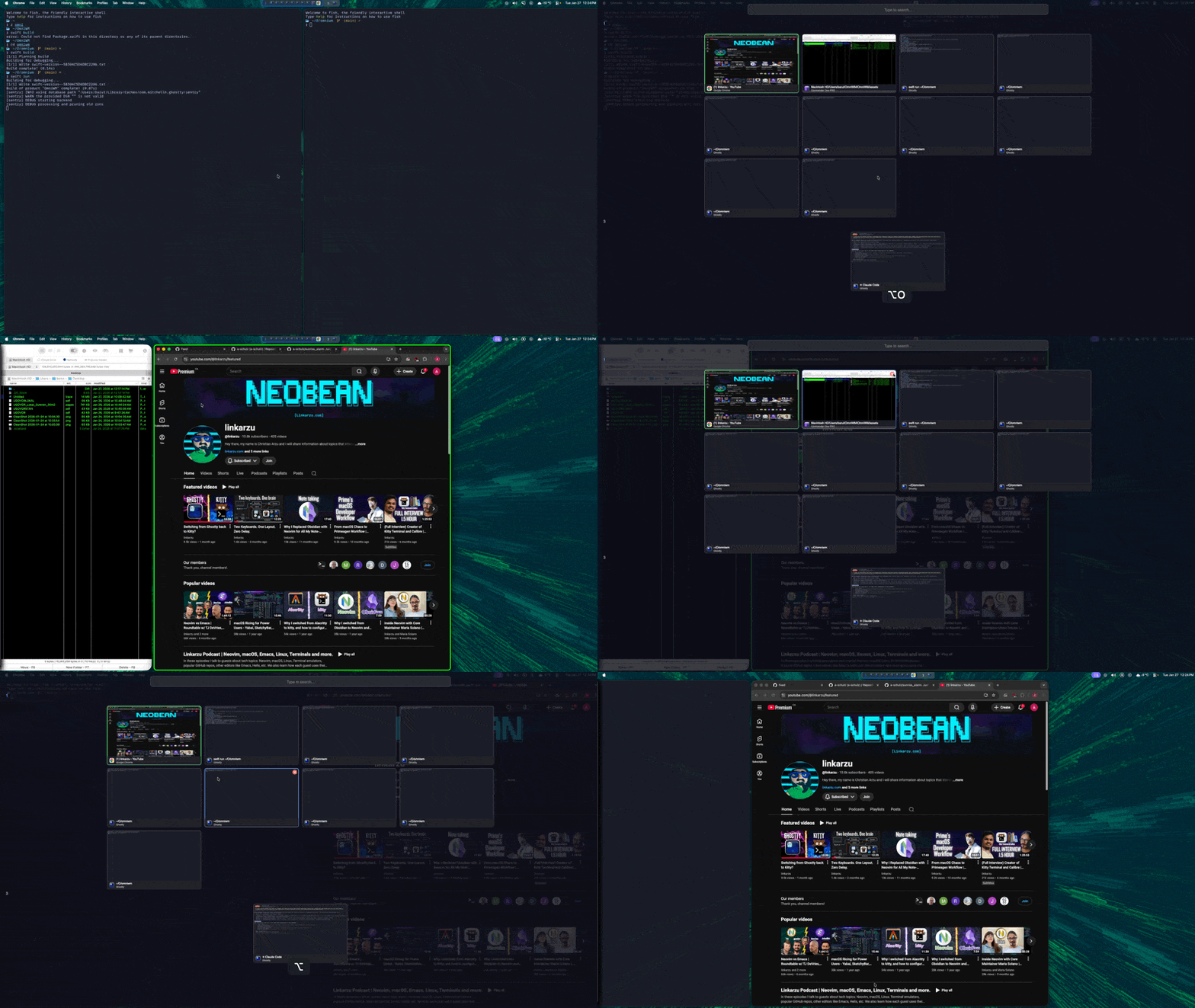
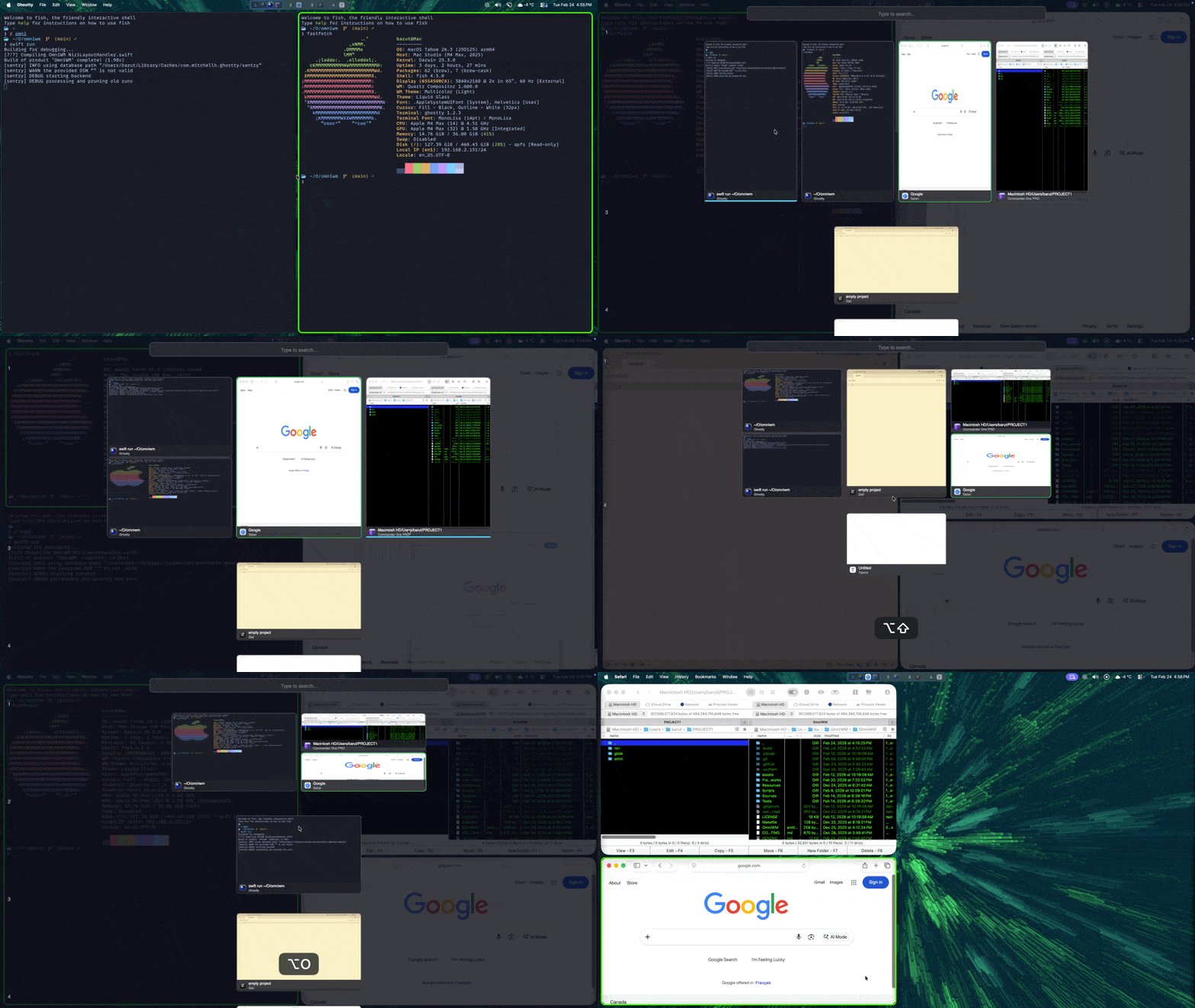
Small demo, not fully showing everything, gif recorded at 30fps due to size, features shown:
- real quake-style temrinal using ghostty framework
- window finder/jumper
- searchable and usable command pallet for any app
- App menu anywhere
- Niri tabs
- Niri and Dwindle layout (some animations shown)
- Hide/unhide status bar icons
- Interactive workspace bar A lot more features not show in the gif.
- Multi-monitor support - Functional but not fully bug free.
- Gestures/Trackpad - Magic Mouse and trackpad gestures are untested (no hardware available for testing)
OmniWM is built for high responsiveness and smooth, crisp animations.
- Private APIs - OmniWM leverages Apple private APIs where ever technically possible in order to reduce latency and improve window management responsiveness.
- Refresh-rate-aware animations - OmniWM targets true display refresh pacing (for example 60/120/144Hz) for animations.
- No SIP disable required - OmniWM does not require System Integrity Protection (SIP) to be disabled and never will.
- Always notarized official releases - Official OmniWM release builds are developer-signed and notarized by Apple and will stay that way.
- Forever free, no limitations - OmniWM is and will remain free to use forever, with no subscriptions, feature paywalls, trial limits, or usage caps.
- macOS 15+ (Sequoia)
- Accessibility permissions (prompted on launch)
The app is developer signed and notarized by Apple.
brew tap BarutSRB/tap
brew install omniwm- Download the latest
OmniWM.zipfrom Releases - Extract and move
OmniWM.appto/Applications - Launch OmniWM and grant Accessibility permissions when prompted
- Launch OmniWM from your Applications folder
- Grant Accessibility permissions in System Settings > Privacy & Security > Accessibility
- Windows will automatically tile in columns
- Use
Option + Arrow keysto navigate between windows - Click the menu bar icon to access Settings
OmniWM offers two layout engines that you can switch between per-workspace:
Niri (Scrolling Columns) - Windows arranged in vertical columns that scroll horizontally. Each column can have multiple stacked windows or be "tabbed" (multiple windows, one visible at a time). Best for wide monitors with many windows.
Dwindle (BSP) - Binary space partition layout that recursively divides screen space. Each new window splits the space in half. Best for traditional tiling with predictable layouts.
Switch layouts per-workspace with Option + Shift + L.
All shortcuts are customizable in Settings > Hotkeys.
| Action | Shortcut |
|---|---|
| Focus Left / Right / Up / Down | Option + Arrow Keys |
| Focus Previous Window | Option + Tab |
| Focus First in Column | Option + Home |
| Focus Last in Column | Option + End |
| Action | Shortcut |
|---|---|
| Move Left / Right / Up / Down | Option + Shift + Arrow Keys |
| Swap Left / Right | Option + Ctrl + H / L |
| Move Column Left / Right | Option + Ctrl + Shift + ← / → |
| Action | Shortcut |
|---|---|
| Switch to Workspace 1-9 | Option + 1-9 |
| Move Window to Workspace 1-9 | Option + Shift + 1-9 |
| Toggle Back & Forth | Option + Ctrl + Tab |
| Summon Workspace to Current Monitor | Ctrl + Shift + 1-9 |
| Action | Shortcut |
|---|---|
| Focus Monitor in Direction | Ctrl + Cmd + Arrow Keys |
| Focus Next Monitor | Ctrl + Cmd + Tab |
| Move Window to Monitor | Option + Ctrl + Arrow Keys |
| Action | Shortcut |
|---|---|
| Cycle Column Width | Option + . / Option + , |
| Toggle Full Width | Option + Shift + F |
| Balance Sizes | Option + Shift + B |
| Toggle Tabbed Column | Option + T |
| Consume Window into Column | Option + Ctrl + [ / ] |
| Expel Window from Column | Option + Ctrl + Shift + [ / ] |
| Action | Shortcut |
|---|---|
| Toggle Fullscreen | Option + Return |
| Window Finder | Ctrl + Option + Space |
| Menu Anywhere | Ctrl + Option + M |
| Menu Palette (searchable) | Ctrl + Option + Shift + M |
| Quake Terminal | Option + ` |
| Overview | Option + Shift + O |
| Action | Shortcut |
|---|---|
| New Tab | Cmd + T |
| Close Tab | Cmd + W |
| Next Tab | Cmd + Shift + ] |
| Previous Tab | Cmd + Shift + [ |
| Next Tab (Alt) | Ctrl + Tab |
| Previous Tab (Alt) | Ctrl + Shift + Tab |
| Select Tab 1-9 | Cmd + 1-9 |
| Split Pane (Horizontal) | Cmd + D |
| Split Pane (Vertical) | Cmd + Shift + D |
| Close Pane | Cmd + Shift + W |
| Equalize Splits | Cmd + Shift + = |
| Navigate Pane | Cmd + Option + Arrow Keys |
Hidden Bar
| Action | Shortcut |
|---|---|
| Toggle Hidden Bar (when enabled) | Right-click menu bar icon |
| Toggle Hidden Bar (Hotkey, unassigned by default) | Unassigned |
A drop-down terminal (powered by Ghostty) that slides in from the screen edge:
- Toggle with
Option + ` - Supports multiple tabs and splits within tabs
- Tab and pane shortcuts are listed in Quake Terminal (Inside Terminal)
- Mouse resize by dragging edges;
Option + dragto move (remembers size/position per monitor) - Configure position (top/bottom/left/right/center), size, and opacity in Settings
- Auto-hides on focus loss (optional)
Quickly search and jump to any window:
- Press
Ctrl + Option + Space - Type to fuzzy-search by window title or app name
- Use arrow keys to select, Enter to focus
Access any application's menu from your keyboard:
Ctrl + Option + M- Shows native menu at cursorCtrl + Option + Shift + M- Searchable menu palette
See all windows at once with thumbnails:
- Press
Option + Shift + O - Click a window to focus it
- Search to filter windows
A visual indicator showing your workspaces:
- Displays open apps per workspace
- Click to switch workspaces
- Configure position, height, and appearance in Settings
Hidden Bar
Hide or reveal status bar icons using a separator item:
- Enable in Settings
- Right-click the OmniWM menu bar icon to toggle
- Optional hotkey exists but is unassigned by default
- Workspaces - Create named workspaces in Settings to organize by project or context
- App Rules - Exclude problematic apps from tiling or assign them to specific workspaces
- Mouse -
Option + dragmoves tiled windows;Option + Shift + draginserts between windows (Niri) - Mouse Resize - Hover window edges and drag to resize (Niri)
- Scroll Gestures (Mouse) - Hold
Option + Shift + Mouse Scroll Wheel(default, configurable) and scroll through columns horizontally - Trackpad Gestures - Use horizontal gestures with 2/3/4 fingers (configurable); direction can be inverted (not tested lacking hardware)
Access settings by clicking the O menu bar icon and selecting Settings or App Rules. Mouse/gesture settings and Hidden Bar options are available in Settings.
Configure per-application behavior in Settings > App Rules:
- Always Float - Force specific apps to always float (e.g., calculators, preferences windows)
- Assign to Workspace - Automatically move app windows to a specific workspace
- Minimum Size - Prevent the layout engine from sizing windows below a threshold
Requirements:
- SwiftPM with Swift 6.2+
- macOS 15.0+
If you find OmniWM useful, consider supporting development:
Thank you to everyone who contributed to OmniWM. Your ideas and code made a real difference.


Issues and pull requests are welcome on GitHub.